Classroom Technology and Seating Charts
On This Page
** Need to schedule wireless microphone for every lecture required.
| Equipment | 102 | 103 | 104 | 106 | 110 | 112 | 122 | 214 | B30 | B32 | B34 |
|---|---|---|---|---|---|---|---|---|---|---|---|
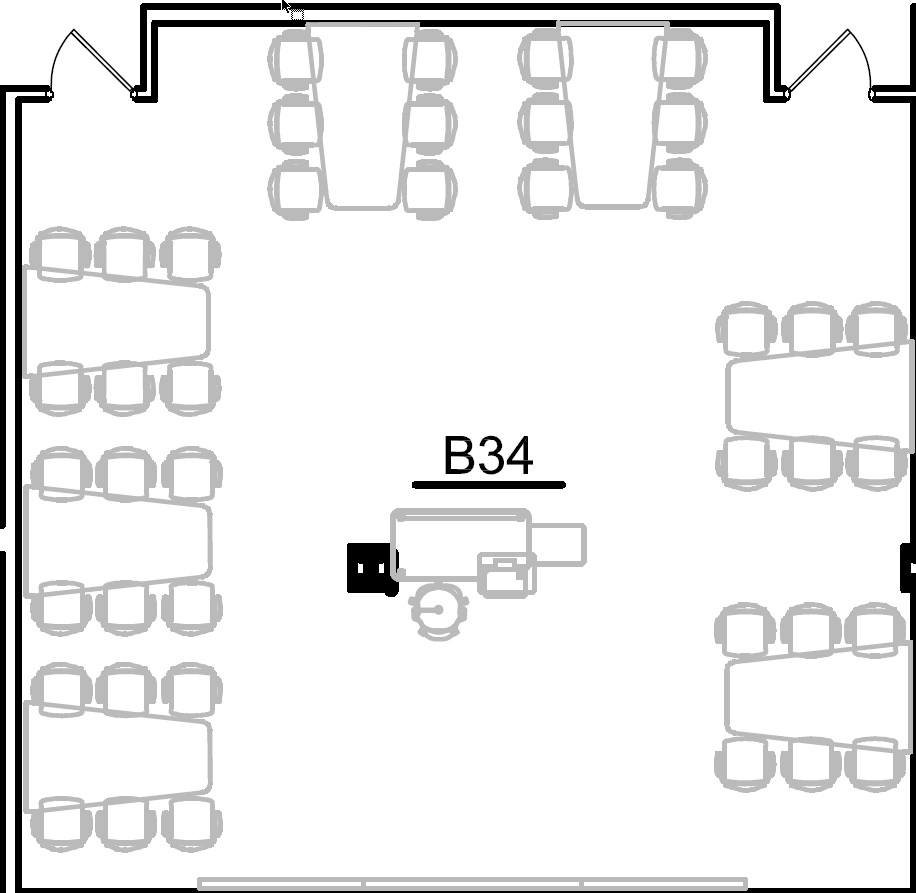
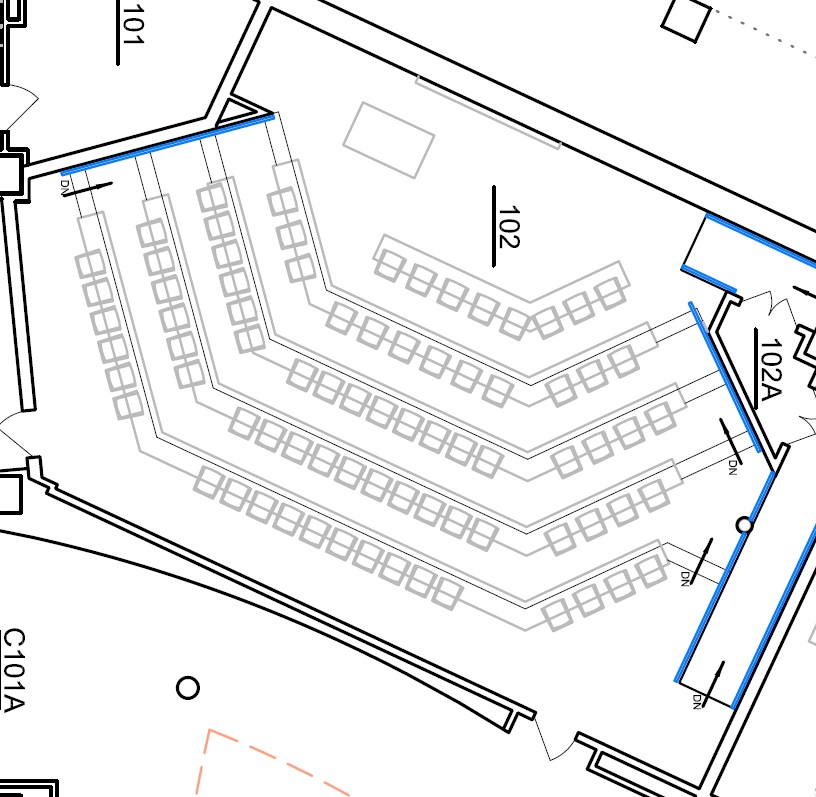
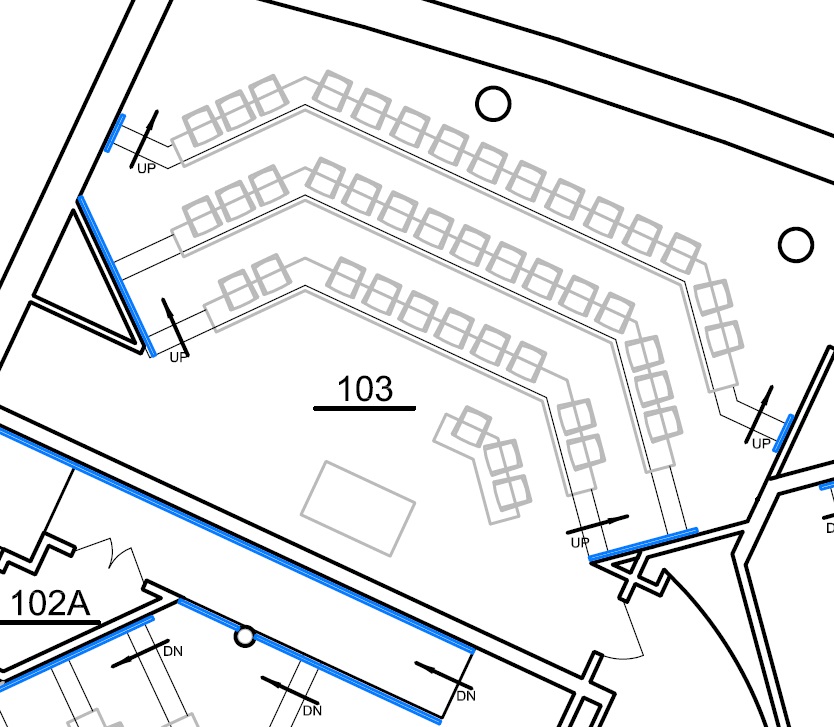
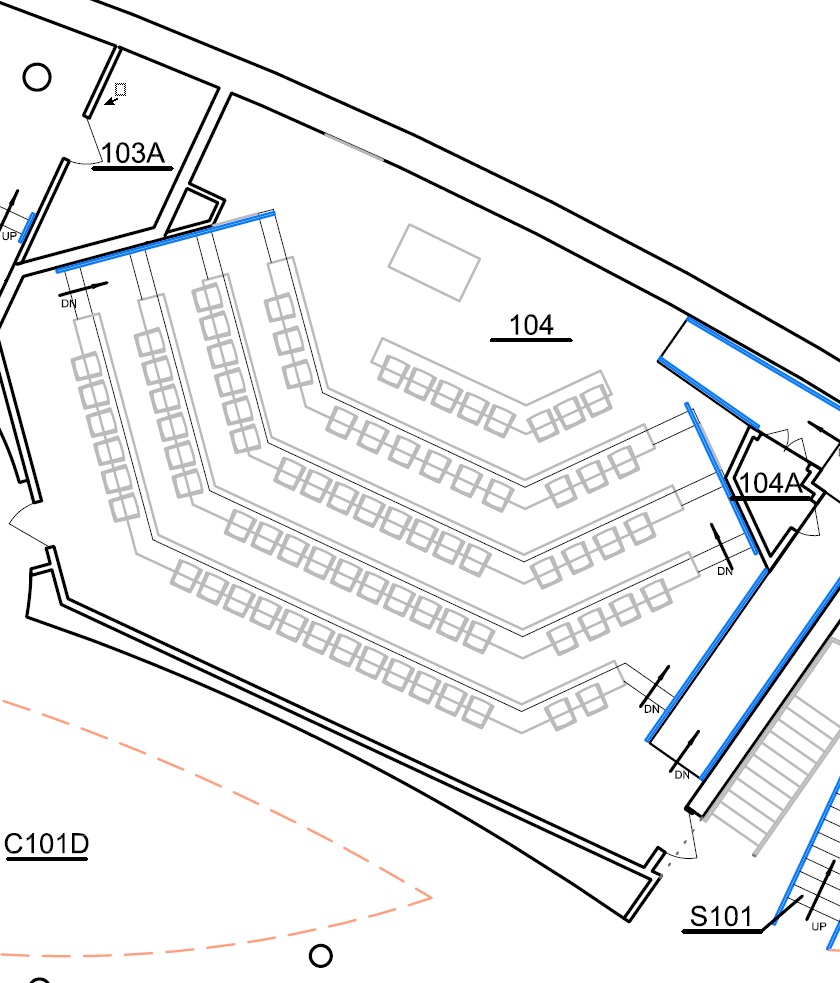
| Seating Capacity | 80 | 42 | 80 | 65 | 83 | 55 | 55 | 48 | 42 | 40 | 42 |
| Computer | Yes | Yes | Yes | Yes | Yes | Yes | Yes | Yes | Yes | Yes | Yes |
| Ceiling mounted projector | Yes | Yes | Yes | Yes | Yes | Yes | Yes | No | Yes | No | Yes |
| Second projection screen | Yes | No | Yes | Yes | No | No | No | No | No | No | No |
| Wall mounted display monitors | No | No | No | No | No | No | No | Yes | No | Yes | No |
| Visualizer/Doc Camera | Yes | Yes | Yes | Yes | Yes | Yes | Yes | Yes | Yes | Yes | Yes |
| Laptop | Yes | Yes | Yes | Yes | Yes | Yes | Yes | Yes | Yes | Yes | Yes |
| Phone | Yes | Yes | Yes | Yes | Yes | Yes | Yes | Yes | Yes | Yes | Yes |
| Wireless Microphone | ** | ** | ** | ** | ** | ** | ** | ** | No | No | No |
| White board | Yes | Yes | Yes | No | No | No | No | Yes | Yes | Yes | Yes |
| Chalk board | No | No | No | Yes | Yes | Yes | Yes | No | No | No | No |
| Course Capture (Panopto) | Yes | Yes | Yes | Yes | Yes | Yes | Yes | Yes | Yes | Yes | Yes |
Manual | No | Yes | No | No | Yes | Yes | Yes | Yes | Yes | Yes | Yes |
Pre-scheduled Only | Yes | No | Yes | Yes | No | No | No | No | No | No | No |
| Video conferencing (Zoom) | Yes | Yes | Yes | Yes | Yes | Yes | Yes | Yes | Yes | Yes | Yes |
| Electrical outlets available at student desks | Yes | Yes | Yes | No | Yes | Yes | Yes | No | Yes | No | Yes |
Equipment
1) WOLF (Visualizer)
- Camera can be used to project 3 dimensional objects as well as opaque and transparent 2D images
- Located in the "garage" on top of the podium in Jacobs or next to the podium in Alfiero
- Select the "Visualizer" button on the touch-screen, to turn it on
- Carefully adjust camera using green thumb holds where possible. Turn camera to face down. Do not put finger prints on mirror
- Use zoom/focus controls on the touch-screen
- To put away, hold camera while gently lowering arm to prevent crash into whiteboard
- Check that drawer is locked in place before leaving
2) Podium PC
- Computer should be running. If no lights are on computer, press power button and see instructions on podium to log in.
- Please contact the IT department, before the semester begins to have any software installed
3) Laptop
- Laptops and Macs can be connected with the HDMI or USB-C cable and various adapters located at the podium.
Additional Equipment
Telephone: Help is available!
- The telephone may be used for any on-campus (dial 7 digit number) or local off campus call (dial 10 digit number)
- The telephone may not be used for long distance calls
- If you encounter problems, use the following contact list in order:
- The Jacobs Lab Consultants: 645-3332 (hours of operation for Jacobs lab)
- Information Technology: 645-3210
Wireless Microphone
- If you wish to use a wireless microphone, contact IT staff.
- Switch on the microphone on the belt clip unit
- Clip the lapel clip on a collar, tie or lapel
- When finished, return the wireless microphone
Sound System
- All audio output from the internal podium pc, laptop, and wireless microphone, go through the room sound system
- The volume adjustment is located on the touch panel, as well as in each computer's system tray
- Audio mute is available on the touch panel
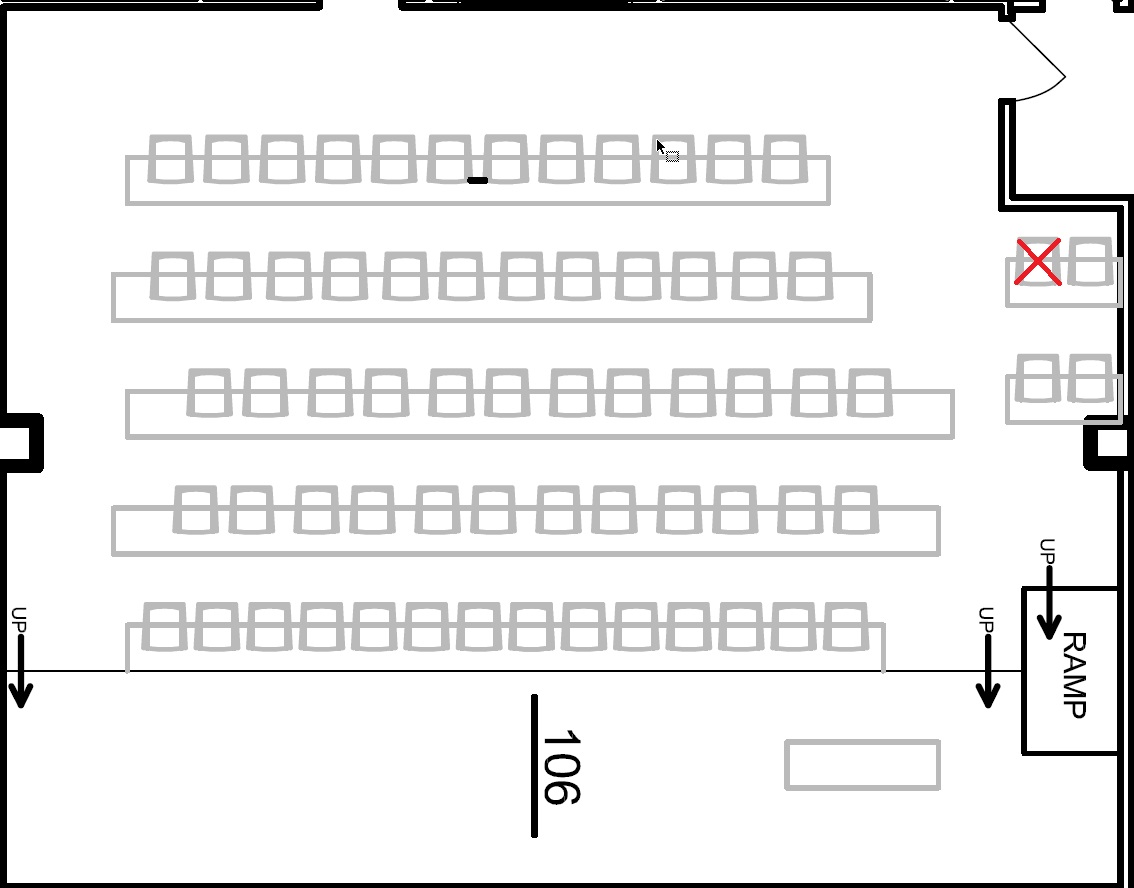
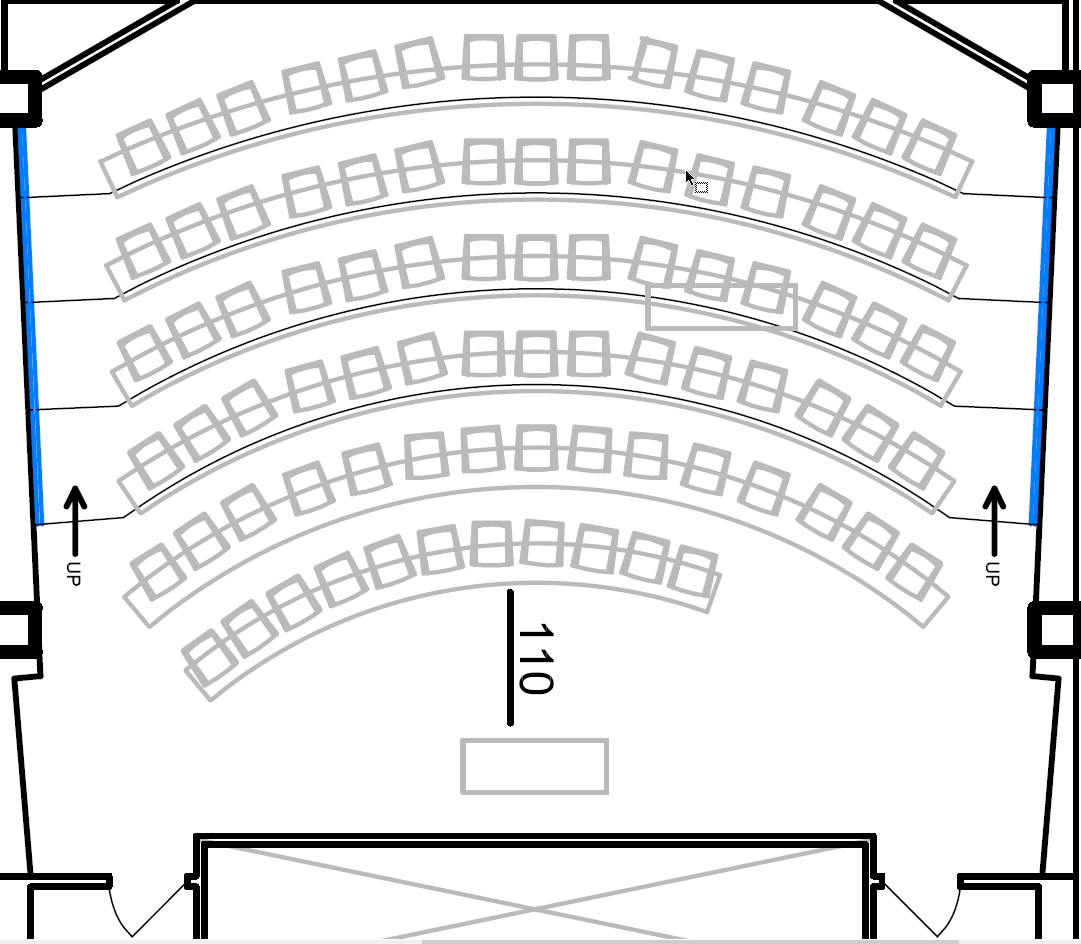
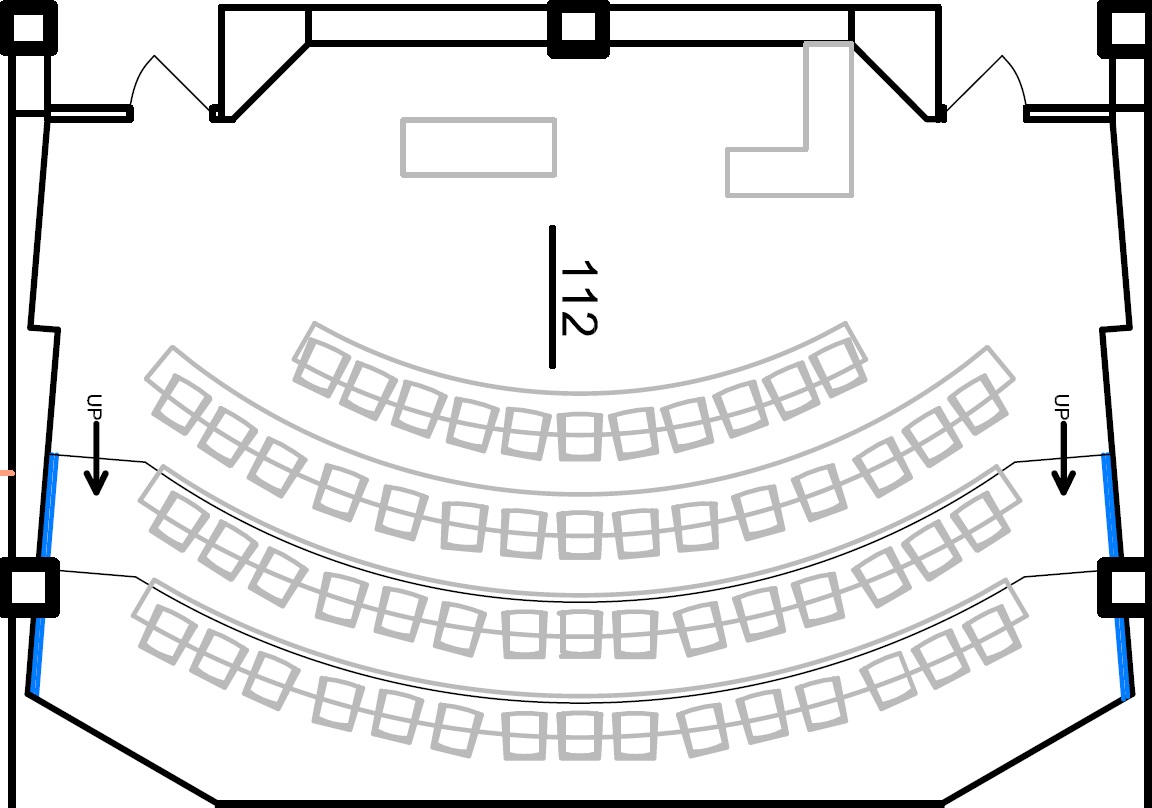
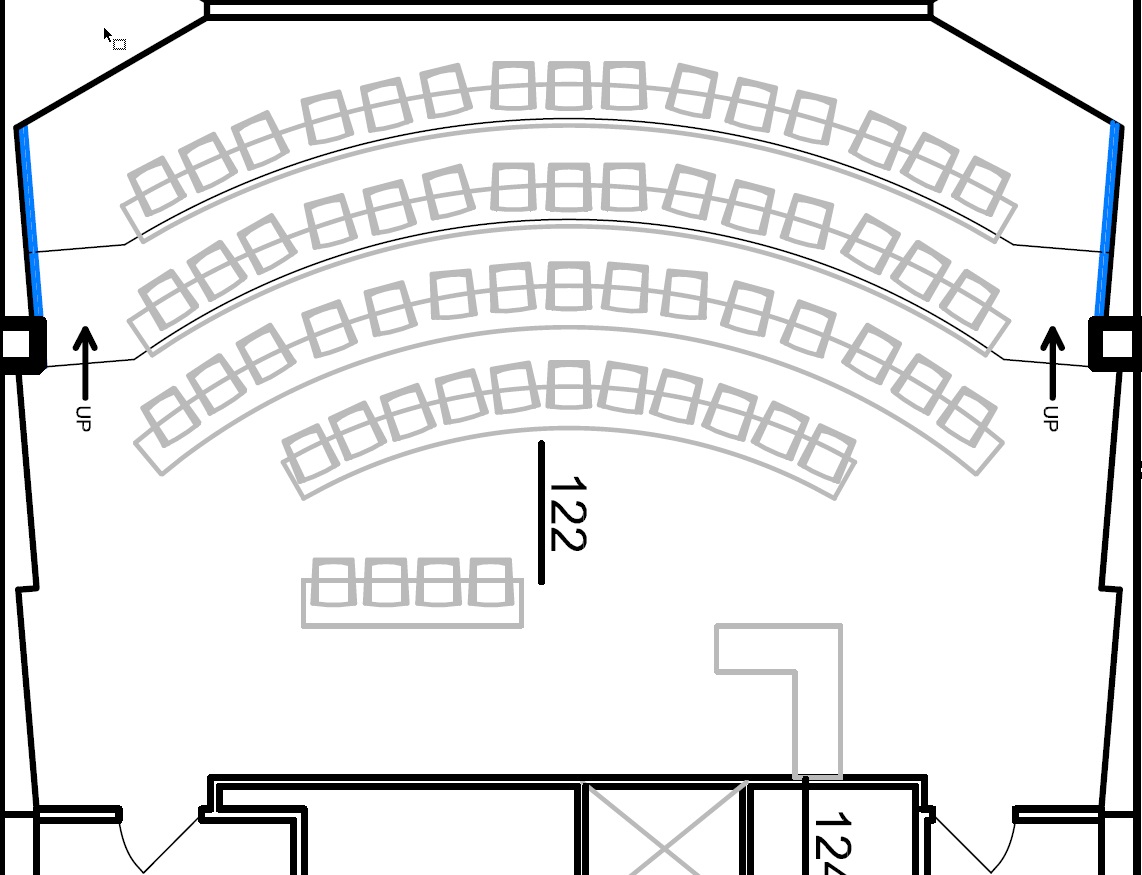
Classroom Seating Charts
Alfiero Center


Jacobs Management Center, First Floor


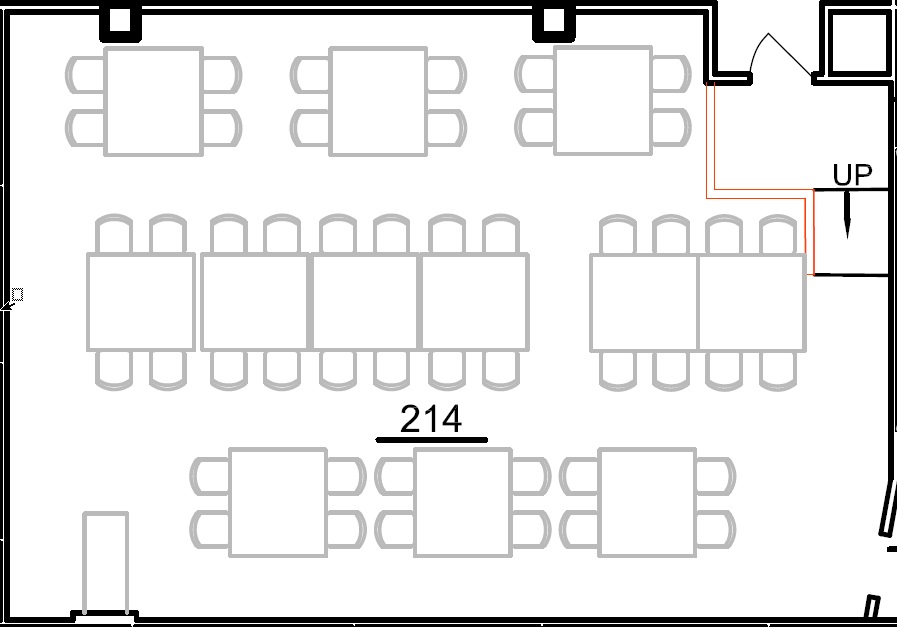
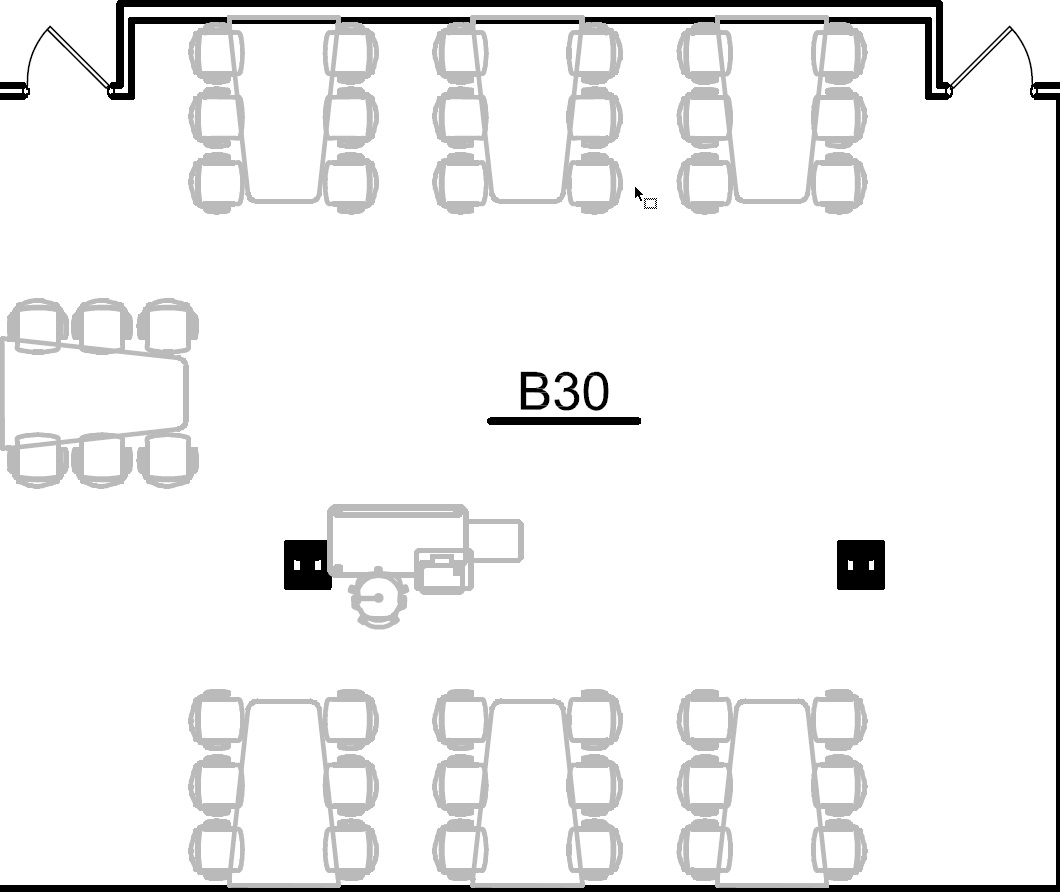
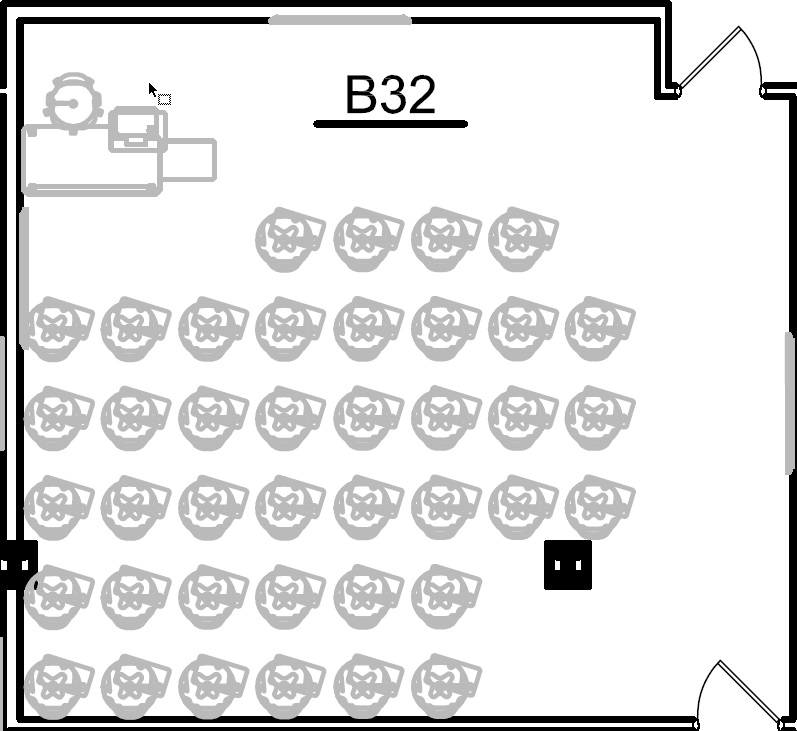
Jacobs Management Center, Second Floor and Lower Level




Jacobs B34